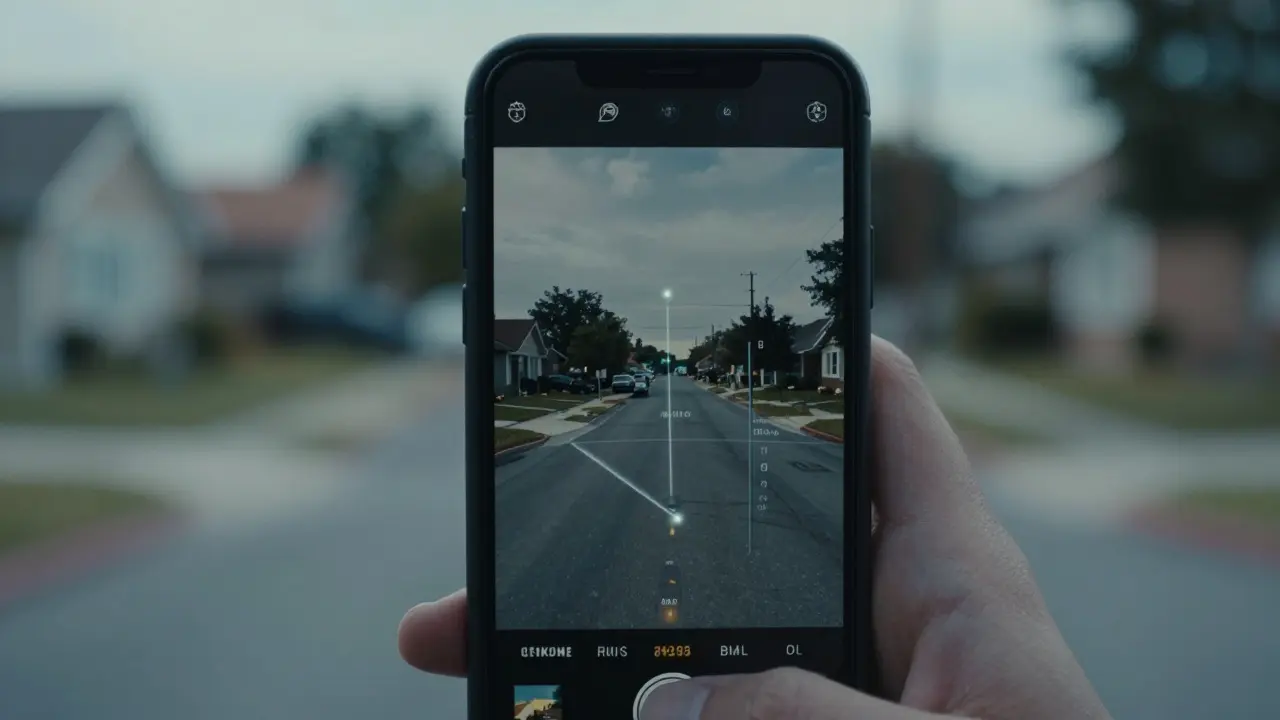
You just hit 'record' on your phone while walking through a quiet neighborhood or filming inside your home. You upload that clip to YouTube, post it on TikTok, or send it to a friend. What you might not realize is that the file contains a digital breadcrumb trail leading straight back to your front door.
Modern smartphones embed Global Positioning System (GPS) coordinates into every video they record by default. This data lives deep within the file structure, invisible to the naked eye but easily accessible to anyone who knows how to look. If you share raw footage without cleaning it first, you are broadcasting your exact physical location to the world.
The Invisible Location Tag
When your phone captures a video, it doesn't just save pixels and sound waves. It wraps them in a container-usually an MP4 or MOV file-and stuffs that container with extra information called metadata. This includes the make and model of your camera, the date and time of recording, and crucially, the latitude and longitude where the video was shot.
This feature exists for convenience. It helps organize photos and videos in gallery apps. But for privacy, it is a liability. A vlogger sharing a travel clip might accidentally reveal their home address if the video was edited there before uploading. A citizen journalist could endanger sources by leaking location data embedded in raw footage. Even a simple selfie video posted online can be reverse-geocoded to pinpoint a specific street corner.
The problem isn't the video itself; it's the hidden data attached to it. Most social media platforms strip some metadata when you upload, but they don't guarantee all of it disappears. Furthermore, if you send the original file directly via email, messaging apps, or cloud storage links, the GPS tags remain intact.
Why Online Cleaners Are Risky
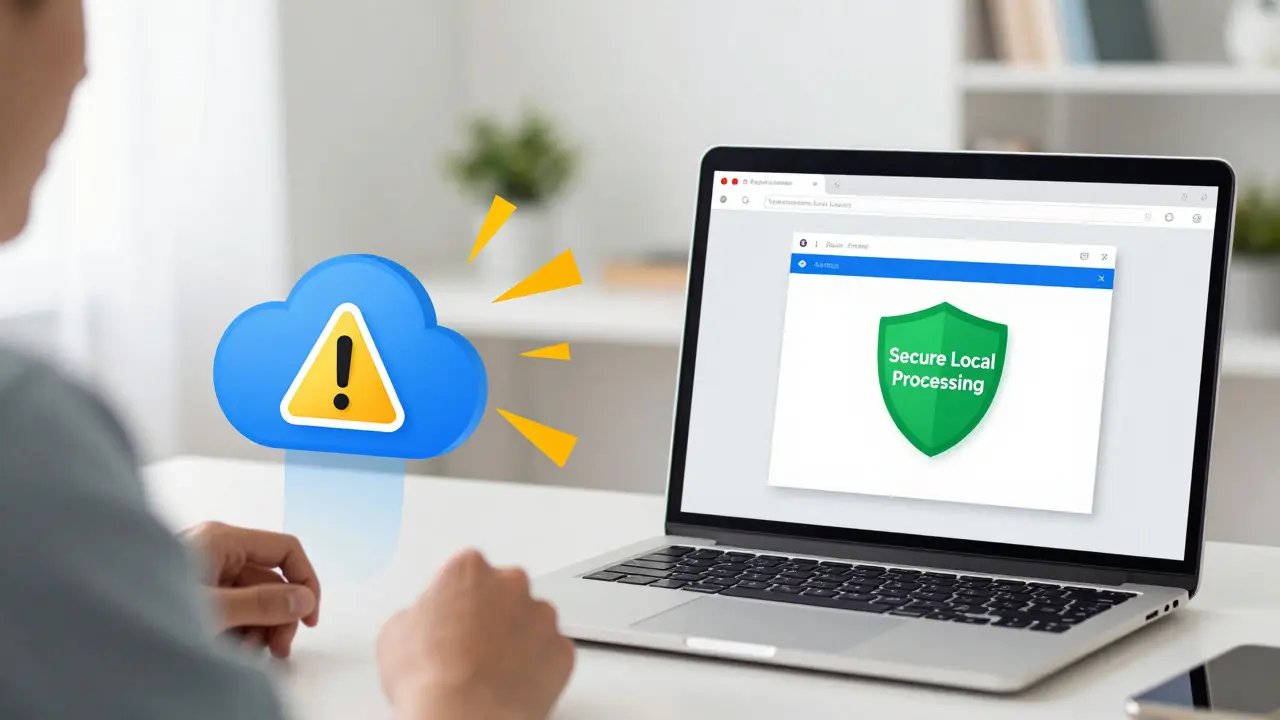
The most obvious solution seems to be finding an "online video metadata remover." You search for one, drag your file into the browser window, and wait for a cleaned version. The catch? To process the file, these services usually require you to upload the entire video to their servers.
Uploading a high-definition video means sending gigabytes of personal data over the internet to a third-party company. You have no way of knowing if that server is secure, who has access to the footage, or whether the data will be deleted after processing. For sensitive content, this trade-off makes little sense. You are solving a privacy leak by creating a bigger security risk.
A better approach keeps the data local. Processing the file on your own device ensures that the video never leaves your control. This method relies on client-side technology, meaning the computation happens right in your browser using JavaScript and WebAssembly. No server touches your file. No one else sees your footage. You maintain complete ownership throughout the cleaning process.
Understanding Video Metadata Structure
To understand how to remove this data effectively, it helps to know where it hides. In an MP4 or MOV file, metadata is stored in specific blocks known as atoms. The main container box is called the moov atom. Inside that, you will find sub-atoms like udta (user data) and meta, which hold the actual tags.
GPS information often resides in iTunes-style key-value pairs labeled ilst. These structures allow devices to store complex data like maps, descriptions, and location coordinates alongside the visual stream. When you clean a video, you aren't re-encoding the pixels-that would take forever and degrade quality. Instead, you are rewriting the container structure, deleting the specific atoms that hold the location data, and leaving the video stream byte-for-byte identical.
This lossless approach is critical. It means the output file looks and sounds exactly like the input, just lighter and safer. Tools that re-encode the video waste time and introduce compression artifacts. A proper sanitizer simply strips the unwanted atoms and saves the result.

Step-by-Step Guide to Wiping GPS Data
Cleaning your videos requires a tool that respects privacy and handles the technical details automatically. Here is how to do it safely without installing heavy software or signing up for accounts.
- Choose a client-side tool. Look for a service that explicitly states the file stays in your browser. Vaulternal's video metadata remover is a prime example. It runs entirely locally, supports MP4 and MOV files up to 1 GB, and requires no signup.
- Upload your file locally. Drag and drop your video into the interface. Since the processing is client-side, you won't see a traditional upload progress bar. The file loads into your browser's memory instantly.
- Inspect the metadata first. Before removing anything, use the inspector mode to see what's there. Check for GPS coordinates, camera models, and timestamps. Some tools let you export this data as JSON, which is useful for documentation if you need to prove what was removed.
- Select what to strip. Most users want to remove everything except perhaps the creation date. Ensure GPS/location fields are checked for deletion. Be careful not to delete essential structural atoms needed for playback.
- Process and download. Click the remove button. The tool will rewrite the container atoms, stripping the location data and other sensitive tags. Download the cleaned file immediately. Verify the new file size is slightly smaller than the original.
After downloading, you can double-check the results by opening the file properties on your computer or using a free metadata viewer. The GPS fields should now be empty or missing entirely.
Preventing Future Leaks
Cleaning existing videos is reactive. Preventing leaks in the first place is proactive. Most smartphones offer settings to disable location services for the camera app. On iOS, go to Settings > Privacy > Location Services > Camera, and select "Never" or "While Using" depending on your needs. Android users can adjust similar permissions in the app info screen.
If you turn off location services for the camera, new videos will not contain GPS data. However, this also breaks features like automatic photo organization and map-based searches. Many people prefer to keep location enabled for convenience and simply clean files before sharing them publicly.
Another habit worth adopting is reviewing shared files. Before attaching a video to an email or posting it to a forum, ask yourself: "Does this reveal where I am?" If yes, run it through a sanitizer. Make it part of your publishing workflow, just like checking spelling or adjusting lighting.
Who Needs to Clean Video Metadata?
Privacy-conscious individuals aren't the only ones at risk. Several groups face higher stakes when location data leaks:
- Vloggers and Content Creators: Regular uploads can create a heatmap of your daily routine. Stripping metadata prevents stalkers or competitors from tracking your movements.
- Citizen Journalists: Protecting sources and yourself is paramount. Raw footage uploaded to news sites can expose dangerous locations. Sanitizing files is a basic safety protocol.
- Real Estate Agents: Virtual tours often include interior shots of homes. If metadata reveals the agent's office or home base, it compromises professional boundaries.
- Drone Operators: Aerial footage clearly shows landmarks. Adding precise GPS coordinates makes it trivial for others to identify restricted or private areas captured in the background.
For these users, a reliable, transparent tool is non-negotiable. Free browser-based solutions eliminate friction. There is no software to install, no command line to learn, and no subscription to manage. Just open the page, clean the file, and move on.
Common Mistakes to Avoid
One frequent error is assuming social media platforms fully sanitize files. While Instagram and Facebook strip much metadata, they don't always catch everything, especially if you upload via desktop browsers or certain third-party apps. Always assume the platform might preserve some tags unless verified otherwise.
Another mistake is using offline desktop software that requires installation. Many legitimate programs exist, but they often come with bloatware, ads, or outdated libraries. Browser-based tools update automatically and work across Windows, Mac, and Linux without administrative privileges.
Finally, don't ignore the JSON export feature if available. Keeping a record of what was removed can be valuable for legal compliance or journalistic integrity. It proves you took reasonable steps to protect privacy, which matters if questions arise later.
Does deleting metadata reduce video quality?
No. Proper metadata removal does not touch the video stream. The pixels and audio are copied byte-for-byte. Only the container structure is rewritten, so quality remains identical to the original.
Can I remove metadata from videos larger than 1 GB?
Browser-based tools typically cap files around 1 GB due to memory limits. For larger files, consider splitting the video first or using desktop software designed for bulk processing.
Is it safe to use online metadata removers?
Only if they process files locally in your browser. Uploading videos to remote servers poses privacy risks. Always verify that the tool uses client-side processing and does not transmit data externally.
How do I check if my video still has GPS data?
Use a metadata inspector tool or view file properties on your computer. Look for fields labeled GPS, Latitude, Longitude, or Location. If these are blank or missing, the data has been successfully removed.
Will turning off camera location services affect other apps?
Disabling location for the camera app only affects videos and photos taken with that app. Other apps requesting location permission will continue working normally based on their own settings.